
 Checked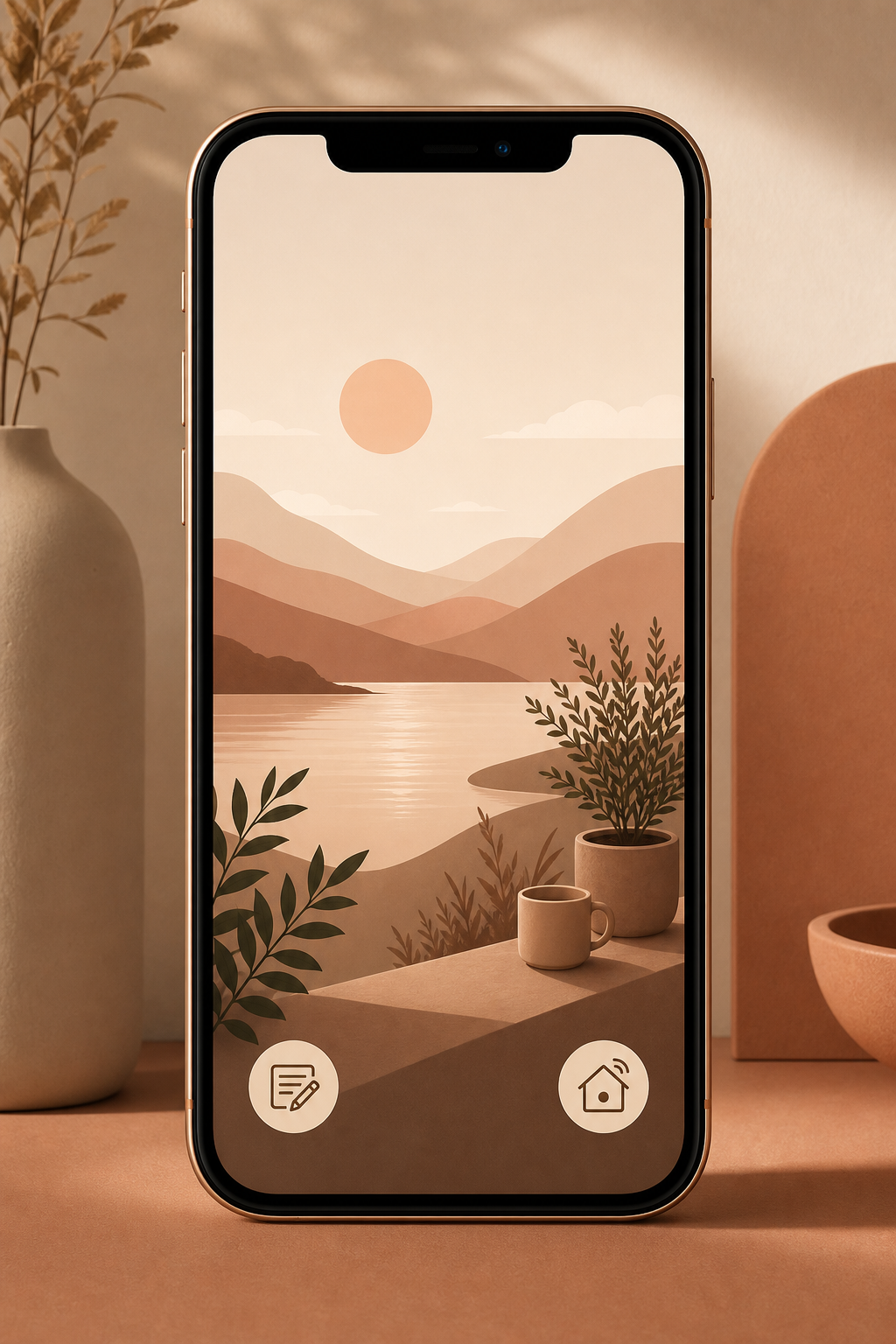
How to change the buttons
Long-press your iPhone lock screen, unlock if asked, and tap Customize. Choose the lock screen, remove the camera or flashlight button with the minus icon, then tap the plus icon. Pick a different Control Center control, such as Notes, Calculator, Translate, Shazam, Wallet, Timer, Focus, Home controls, or a supported action from a third-party app.
Why it helps
Those two lower lock screen buttons are faster than opening an app from the Home Screen. If you use them for actions you need several times a week, you save time and reduce small bits of friction. The best choices are actions that make sense before the phone is fully in use: starting a timer, switching a smart light, identifying music, opening a quick note, or jumping into Translate.
Smart setups to try
Put one on-the-go action on the left and one home or work action on the right. Useful pairs include Notes plus Timer, Shazam plus Wallet, Home plus Focus, or Translate plus Calculator. If you use multiple lock screens, set different shortcuts for different Focus modes: work actions during the day, home controls in the evening, and travel tools when you are away.
What to watch out for
Not every app offers lock screen controls, and some actions may still ask you to unlock first. Avoid shortcuts that reveal more than you want from the lock screen or that pull you into distraction. If you still rely on the camera or flashlight every day, replace only one button. After three days, keep the setup only if you actually used it.
Sources
Selected references used to verify or support this tip.
- Apple Support: Turn the flashlight on or off on your iPhone or iPad Pro Apple Support · official_docs