
TL;DR
Many iPhone apps can be turned into a widget directly from the Home Screen, without hunting through the widget gallery.
Checked 1 source Season: All year
 Checked
 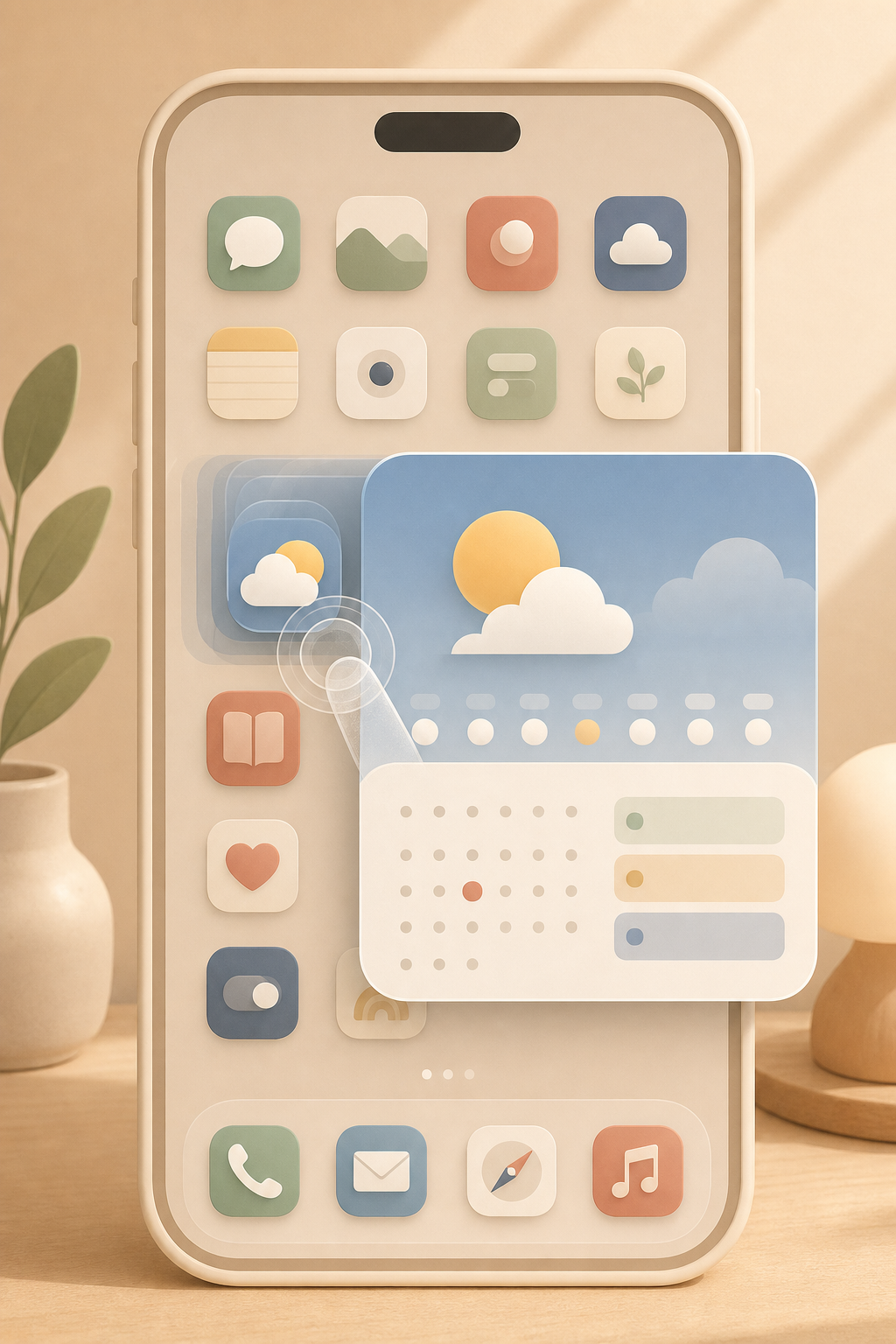 ## How to do it Press and hold the app icon on your iPhone Home Screen until the context menu appears. If the app offers widgets, iOS shows the available widget sizes right at the top of that menu. Tap the size you want, and the normal icon turns into a widget in place. This saves a surprising amount of friction. Instead of opening the widget gallery, searching for the app, choosing a size, and placing it manually, you start from the exact app you already found. It is fastest when you are cleaning up your Home Screen and deciding which apps deserve more visual space. ## Change it back If the widget takes up too much room, press and hold it again. When available, choose the small icon option with the four-square symbol to return the widget to a regular app icon. That makes the feature low risk. You can test a medium calendar widget, a small weather widget, or a large task list without committing to the layout forever. If it makes the screen busier instead of more useful, switch it back in a few seconds. ## Best apps to try Start with apps where the widget gives you information before you open the app. Calendar, weather, reminders, notes, fitness, smart-home, parcel tracking, and music apps are good candidates because their widgets can answer a question at a glance. Skip apps whose widgets are mostly decorative or rarely useful. A widget should earn its space by saving a tap, reducing search time, or showing something you check often. If it does none of those things, the plain icon is cleaner. ## Good to know This only works when the app provides widgets. If you do not see widget previews in the icon menu, the app may not support widgets, or your iPhone may not be running the required iOS version. A simple app to test with is Apple’s Find My app. It offers widgets, so you should see the option directly on the app icon if your iPhone supports the feature. Apple documents this direct conversion in iPhone Help under “Turn an app icon into a widget.” If the option is missing, check your iOS version first, then update the app and try again.
Sources
Selected references used to verify or support this tip.
- Add, edit, and remove widgets on iPhone Apple Support · official_docs