
TL;DR
Your iPhone can automatically filter notifications based on time, location, or activity. Here's how to set up Focus modes for work, sleep, and downtime.
Checked 1 source Season: All year
 Checked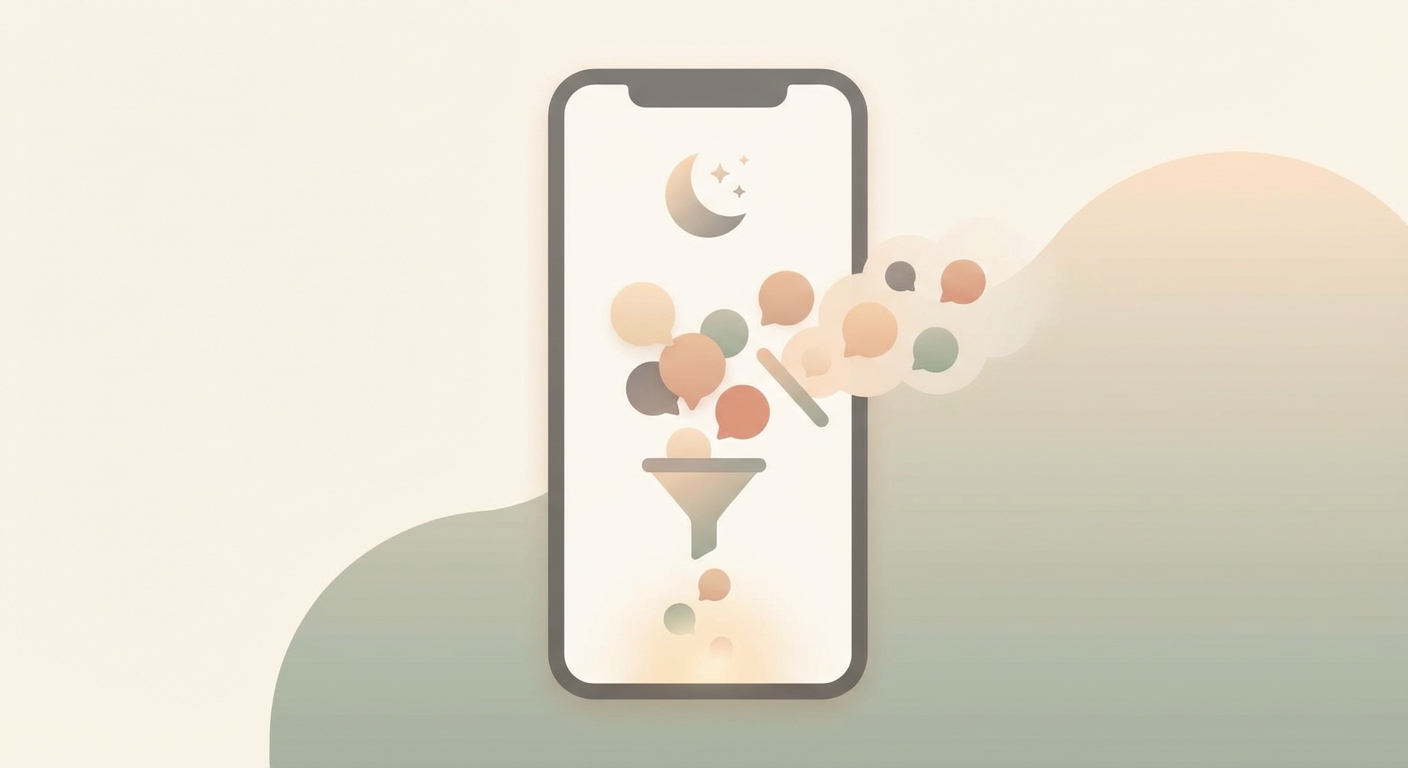
How to set it up
- Open Settings → Focus.
- Choose an existing Focus (e.g., "Work", "Do Not Disturb", "Sleep") or create a new one.
- Set which people and apps are still allowed to notify you.
- Set up automation: by time of day, location, or app usage.
- Optional: Turn on Share Focus Status — others will see you're currently unavailable.
Why this helps
iOS filters all notifications in the background based on your Focus rules. The best part: your Focus syncs automatically across all your Apple devices (Mac, iPad, iPhone). Set it up once, enjoy the quiet everywhere.
Practical examples
- Work: Only your boss and team chat get through.
- Sleep: No notifications — except calls from favorites.
- Downtime: Social media apps go silent.
Good to know
- Emergency bypass: Important contacts can enable "Break through Focus" — so you never miss anything critical.
- Filters that are too strict can block important messages. Review your settings regularly.
- Focus modes have been available since iOS 15 — works on any reasonably current iPhone.
Sources
Selected references used to verify or support this tip.
- Apple Support: Set up a Focus on iPhone Apple Support · official_docs