
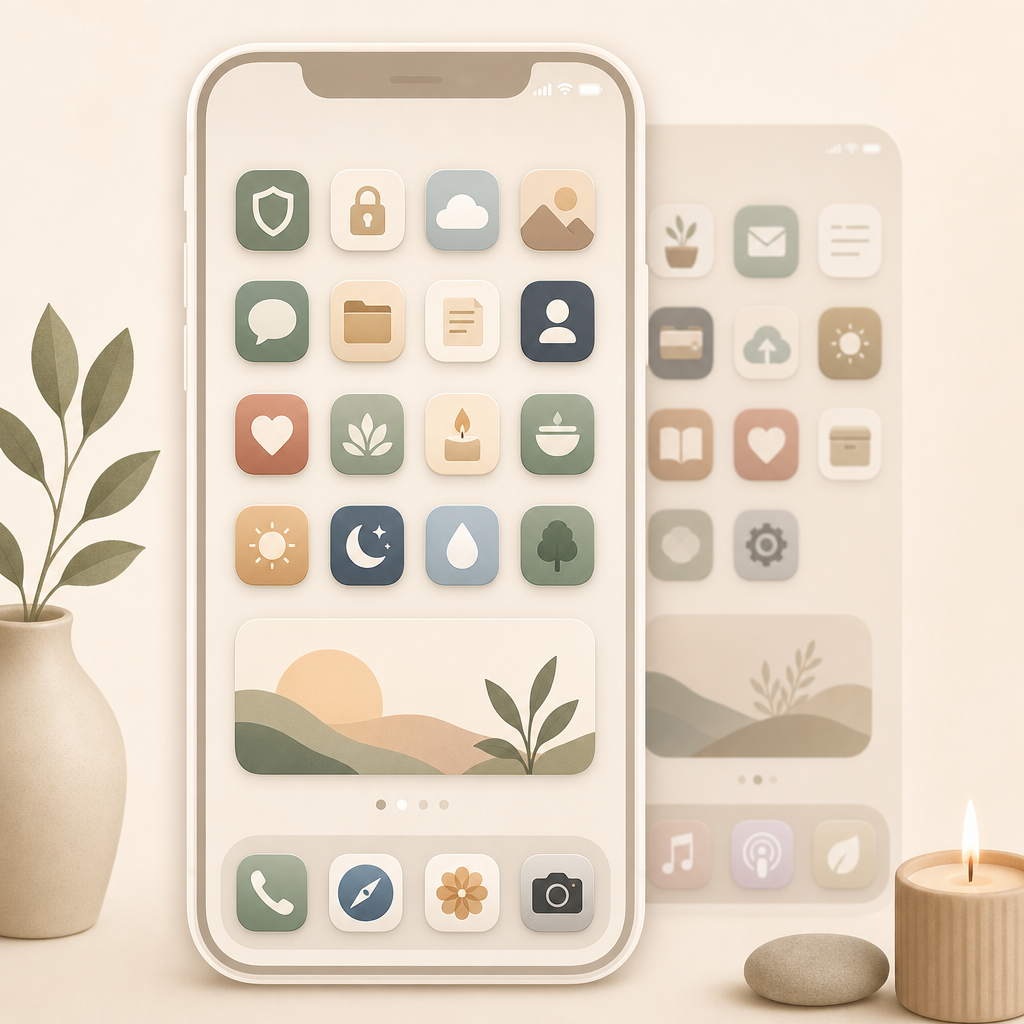
Hide an entire Home Screen page
Press and hold an empty area on your Home Screen until the apps start to jiggle. Tap the page dots at the bottom. You will see small previews of all Home Screen pages. Remove the checkmark from the page you want to hide, then tap Done. The apps stay installed and remain available through the App Library or Search.
Make individual apps less visible
If your iPhone offers the option, press and hold an app and choose the Face ID or hide option. Depending on your iOS version, you can require Face ID, remove the app from the usual Home Screen view, or both. This is useful for banking, health, dating, shopping, or anything you do not want sitting in plain sight.
Why it helps
A crowded Home Screen looks harmless, but it steals attention every day. Hidden pages are great for rarely used apps, seasonal setups, travel folders, or private areas. You delete nothing, lose no data, and can show the page again through the same page-dot menu.
Good to know
Hiding is not a vault. Depending on the method, apps may still appear in Search, the App Library, notifications, or Settings. For real privacy, also check Face ID protection, your device passcode, and sensitive notification previews on the Lock Screen.