
TL;DR
Hold Ctrl while taking a Mac screenshot to copy it straight to the clipboard, then paste it wherever you need it.
Checked 1 source
 Checked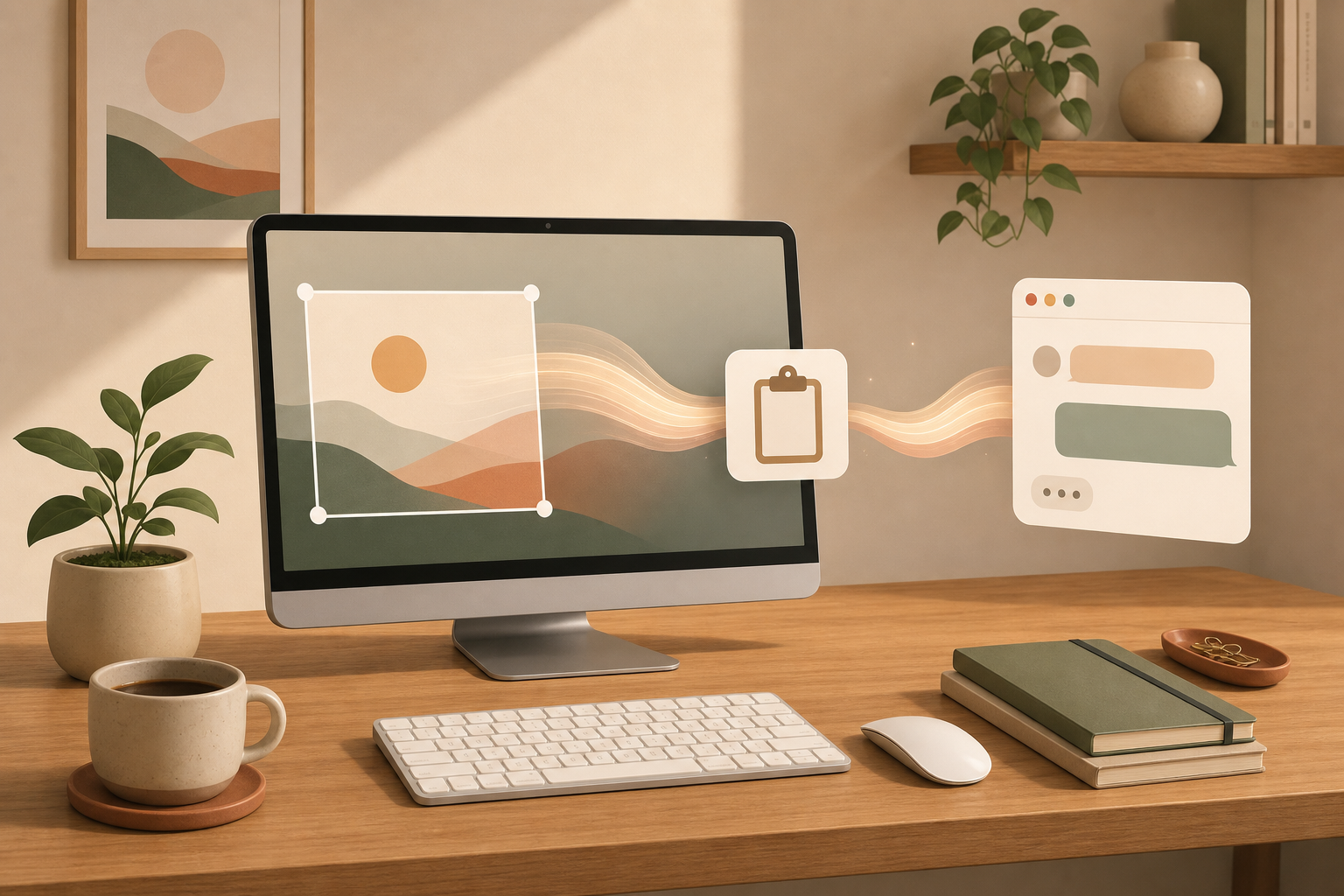
How to do it
- Press
Cmd+Ctrl+Shift+4to capture a selected area. - Drag the frame and release. The screenshot goes to the clipboard instead of becoming a file on your desktop.
- Paste it with
Cmd+Vinto Mail, Notes, Slack, Teams, Pages, or another app. For a whole window, press the Space bar after the shortcut.
Why it helps
The normal screenshot shortcut can turn your desktop into a pile of temporary image files. The Ctrl version treats the screenshot like copied text: capture, paste, done.
It is especially useful for quick support replies, chat messages, documentation, and feedback where you only need the image once.
Good to know
If you need to archive the screenshot later, save it intentionally from the app you pasted it into or use the normal shortcut without Ctrl.
You can also open the screenshot toolbar with Cmd + Shift + 5 to change the default save location. For everyday one-off screenshots, the clipboard shortcut is usually cleaner.
Sources
Selected references used to verify or support this tip.
- Take a screenshot on your Mac Apple Support · official_docs