
TL;DR
With Hot Corners, move your mouse to any screen corner to instantly trigger actions like Show Desktop, Lock Screen, or Mission Control — no keyboard shortcut needed.
Checked 1 source Season: All year
 Checked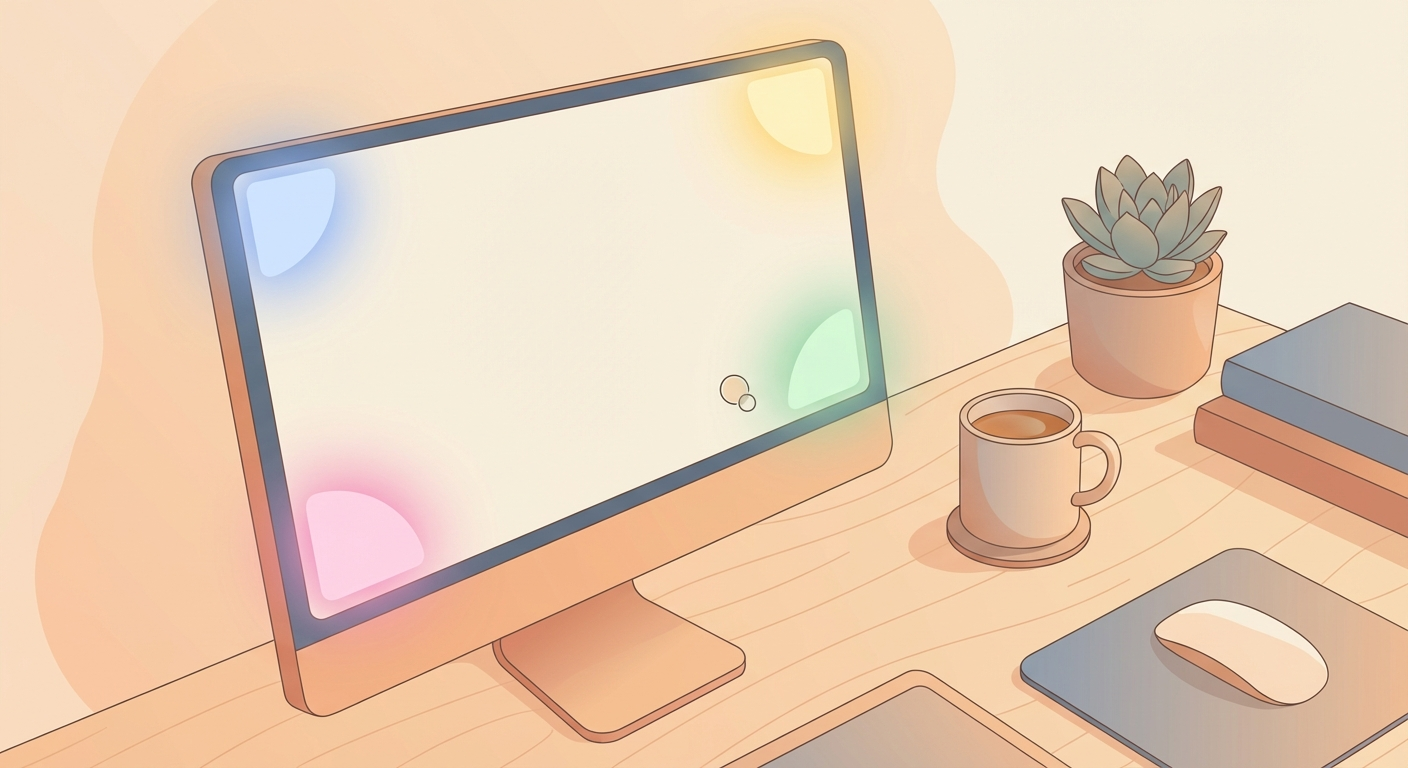
How to set it up
- Open System Settings → Desktop & Dock → scroll all the way down.
- Click Hot Corners.
- For each of the 4 corners, choose an action: Show Desktop, Mission Control, Start Screen Saver, Lock Screen, Notification Center, Launchpad, etc.
- Click Done — active immediately.
- Pro tip: Hold a modifier key (e.g. ⌘ or ⌥) while assigning — the corner will only trigger when you hold that key. Prevents accidental activation.
Recommended corner setup
- Top left: Mission Control (see all windows at a glance)
- Top right: Notification Center
- Bottom left: Lock Screen (perfect when stepping away)
- Bottom right: Show Desktop (quickly access files on your desktop)
Why this helps
Hot Corners have existed in macOS for years, but most Mac users don't know about them. Once set up, you'll save dozens of clicks per day. Especially handy:
- Drag files to the desktop: Trigger the corner → desktop appears → drop the file.
- Lock your Mac when leaving: Mouse to the corner → screen locked.
- Quick app switching: Mission Control without memorizing keyboard shortcuts.
Tip for large monitors
On ultra-wide or large monitors, you might accidentally trigger corners. The fix: use a modifier key (e.g. ⌘+corner). The action only fires when you consciously hold the key.
Sources
Selected references used to verify or support this tip.
- Apple Support: Use hot corners on Mac Apple Support · official_docs