
TL;DR
Safari profiles let you split bookmarks, cookies, tab groups, and favorites without installing a second browser. Less clutter, fewer mix-ups.
Checked 1 source Season: All year
 Checked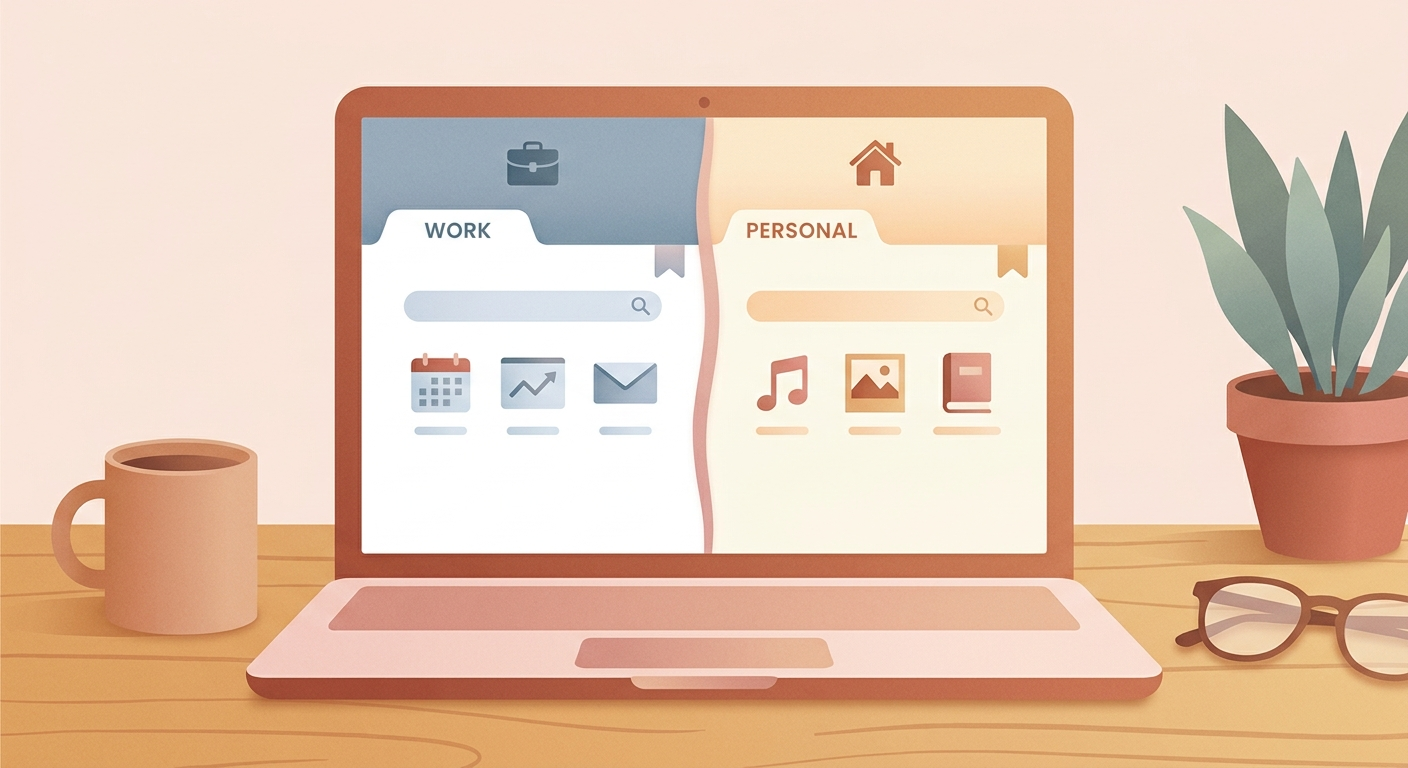
How to set it up
- Open Safari on your Mac.
- Go to Safari → Settings and open Profiles.
- Click New Profile and give it a clear name like Work or Personal.
- Pick a different color, icon, and if you want, a separate Favorites folder.
- Repeat the process for your other profile. After that, you can open a new window in the profile you actually need.
Why it helps
Each profile keeps its own cookies, history, tab groups, and start page. That means your work logins stay in work, and your personal browsing stays personal. No more opening the wrong Gmail, the wrong Notion space, or yesterday's shopping tabs during a meeting.
This is especially useful if you switch between multiple roles during the day and want a cleaner browser setup without juggling two different apps.
Good to know
- Great for work, personal use, side projects, or shared family setups.
- If you use iCloud for Safari, profiles can also show up across your Apple devices.
- A separate start page and Favorites folder makes each profile much more useful.
- If you revisit the same pages all day, combine profiles with pinned tabs.
Ingredients
- A Mac with a recent Safari version
- Two minutes to set things up
- Clear profile names like Work and Personal
Sources
Selected references used to verify or support this tip.
- Apple Support: Create a profile in Safari on Mac Apple Support · official_docs