
 Checked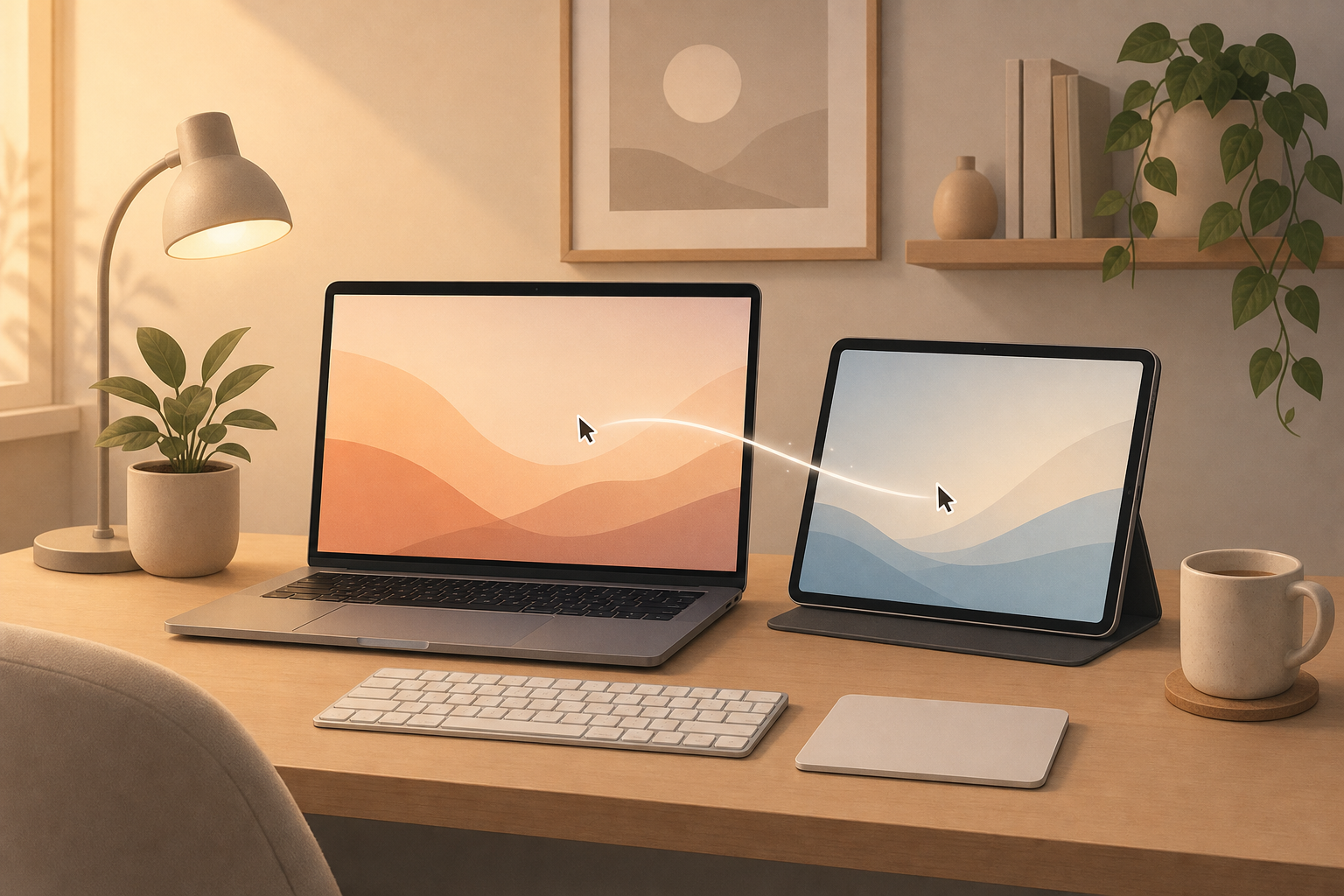
Why this is useful
Universal Control is one of those Mac features that feels small until you start using it every day. Place your iPad next to your Mac, push the pointer past the edge of the Mac screen, and you can control the iPad with the same mouse, trackpad, and keyboard. Your iPad stays an iPad, but it suddenly becomes much easier to use beside your main work screen.
This is ideal when you are researching on the Mac and keeping notes, a calendar, a PDF, GoodNotes, Freeform, or a reference page open on the iPad. You do not need to pair accessories again, install another utility, or turn the iPad into a second display.
How to set it up
On your Mac, open System Settings and go to Displays. Open the advanced display options and enable the setting that lets your pointer and keyboard move between nearby Macs or iPads. On the iPad, make sure Wi-Fi, Bluetooth, and Handoff are enabled. Both devices should use the same Apple ID and be close to each other.
Put the iPad next to the Mac and move the pointer beyond the left or right edge of the Mac screen. If the pointer appears from the wrong side, return to Displays on the Mac and drag the iPad tile into the same position as the physical iPad on your desk.
A good daily workflow
Use the iPad for things you need beside your main task: a checklist, meeting notes, a chat, a reference document, a timer, or a page you want to keep visible. You can type on the iPad with your Mac keyboard, then move straight back to the Mac without changing hands or devices.
A simple test: open Notes on the iPad, type a sentence with your Mac keyboard, then move the pointer back to the Mac. If that works smoothly, you have a setup that will quietly save friction every day.
Common mistakes to avoid
Do not confuse Universal Control with Sidecar. Sidecar turns the iPad into an extra Mac display. Universal Control keeps both devices separate and simply shares input. If it does not connect, check same Apple ID, Handoff, Wi-Fi, Bluetooth, device unlock status, and whether both devices are close enough.
Sources
Selected references used to verify or support this tip.
- Apple Support: Use Universal Control Apple Support · official_docs