
TL;DR
Guests asking for the WiFi password? Your iPhone can display a QR code that any smartphone can scan – including Android.
Checked 1 source Season: All year
 Checked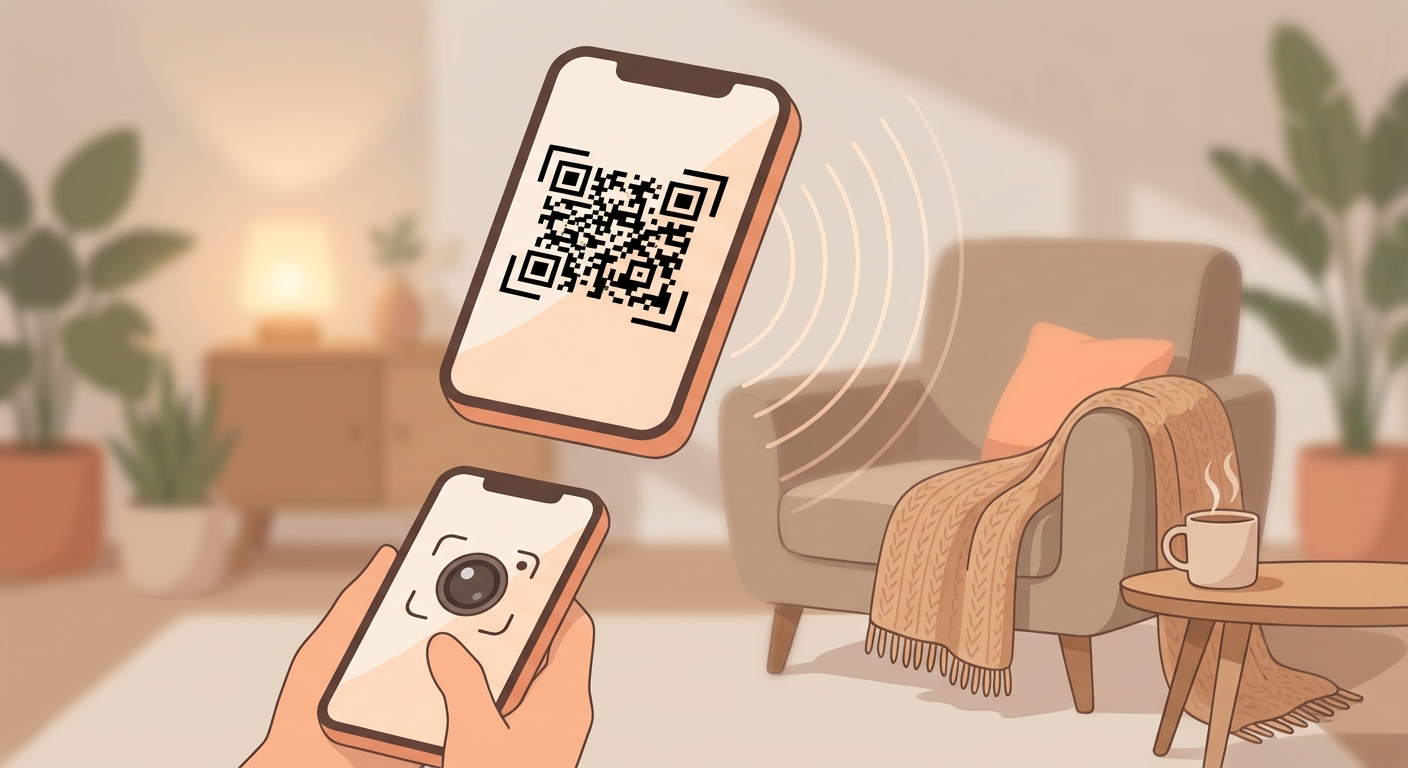
How to do it
Option A: iPhone to iPhone (fastest)
- Hold both devices near each other (WiFi and Bluetooth must be on).
- Your guest opens Settings → WiFi and taps your network.
- A pop-up appears on your iPhone: "Share Password" – tap it, done.
Option B: QR Code (for Android & multiple guests)
- Open the Passwords app on your iPhone (or: Settings → Passwords).
- Tap WiFi and select your network.
- Tap "Show Network QR Code".
- Show the QR code – others scan it with their camera app.
- The connection is established automatically, no typing needed.
Why this helps
- No more spelling out complicated passwords.
- The QR code works with any smartphone (iPhone, Android, etc.).
- Everything stays local – the password isn't shared over the internet.
Good to know
- The QR code feature is available in newer iOS versions via the Passwords app.
- Don't leave the QR code lying around publicly – anyone could use it to access your WiFi.
- Only works with networks your iPhone already has saved.
Sources
Selected references used to verify or support this tip.
- Find and share your Wi-Fi password on iPhone Apple Support · official_docs