
TL;DR
When your iPhone is charging in landscape mode, it can show a full-screen clock, widgets, or photos. Perfect for your nightstand, desk, or kitchen.
Checked 1 source Season: All year
 Checked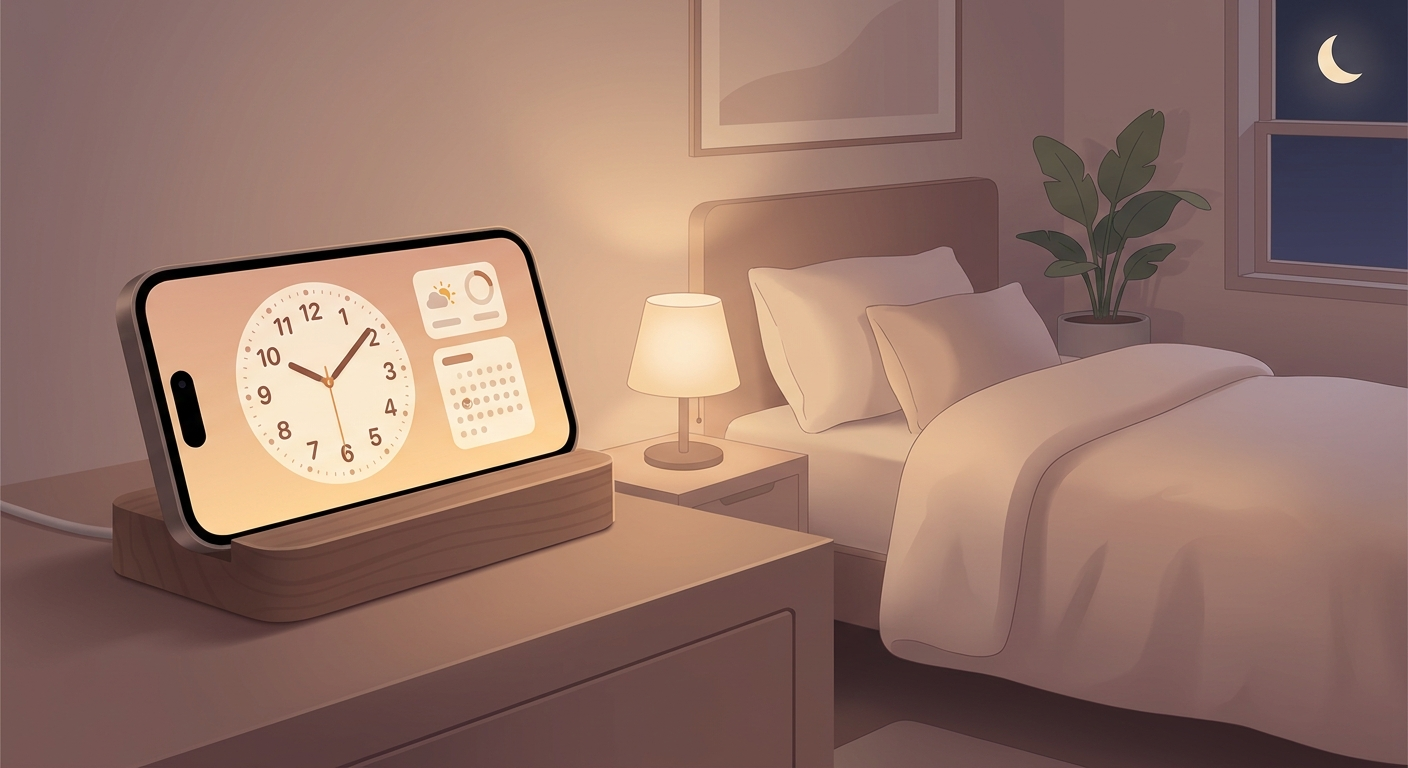
How to set up StandBy
- Open Settings → StandBy and turn it on.
- Put your iPhone on charge in landscape orientation using a stand or by leaning it sideways.
- Lock the iPhone and wait a moment – the StandBy screen should appear automatically.
- Swipe sideways to switch between clocks, widgets, and photos.
Why it is useful
StandBy turns your iPhone into a small information display you will actually use. On a nightstand it works as a bedside clock, on a desk it can show your calendar or weather, and in the kitchen it is handy for timers or reminders. If you have an iPhone with an always-on display, the screen feels especially natural. On other models it wakes when movement is detected or when you tap the screen.
Good to know
- A MagSafe stand or any stable charging dock makes this much nicer.
- You can customize the widget stacks, just like other iPhone widgets.
- The red night mode is easier on your eyes in a dark bedroom.
- If StandBy does not appear, the usual reason is that the iPhone is not charging or not properly in landscape mode.
Sources
Selected references used to verify or support this tip.
- Apple Support: Use StandBy on iPhone Apple Support · official_docs