
How it works
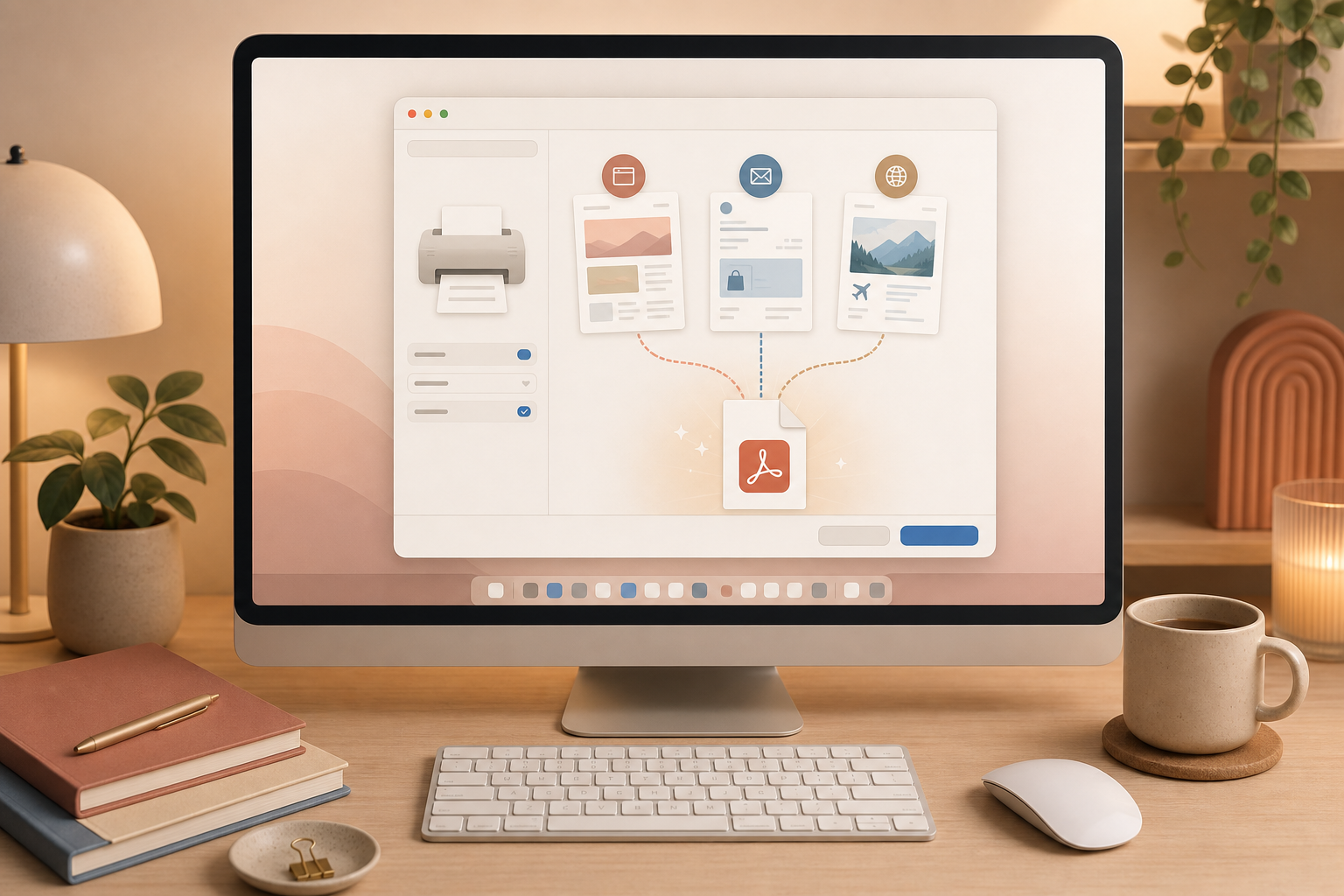
Open the web page, email, confirmation, receipt, or document you want to keep. Press Cmd + P or choose File > Print from the menu bar. In the lower-left corner of the print dialog, open the PDF menu. Choose Save as PDF, give the file a clear name, and store it in the right folder.
Why it helps
You do not need a screenshot tool, browser extension, online converter, or separate PDF app. macOS creates a proper PDF file that you can search, send, archive, or attach later. This is especially useful for invoices, insurance documents, travel confirmations, tickets, order summaries, tax records, and longer emails that should not disappear inside an inbox.
Name the file while the context is fresh
Use a filename with date and purpose, such as 2026-06-20-hotel-booking-zurich.pdf or 2026-06-20-headphones-order.pdf. If you always save these PDFs into folders like Receipts, Travel, or Insurance, you will find them much faster when you actually need them.
Know the limits
This trick works wherever the app offers the standard macOS print dialog. On dynamic web pages, login areas, or very long pages, the PDF can look different from what you see on screen. Take a quick look at the preview before treating the PDF as your final copy.