
TL;DR
The Photos app can explain plants, pets, landmarks, and other subjects straight from a picture.
Checked 1 source Season: All year
 Checked
 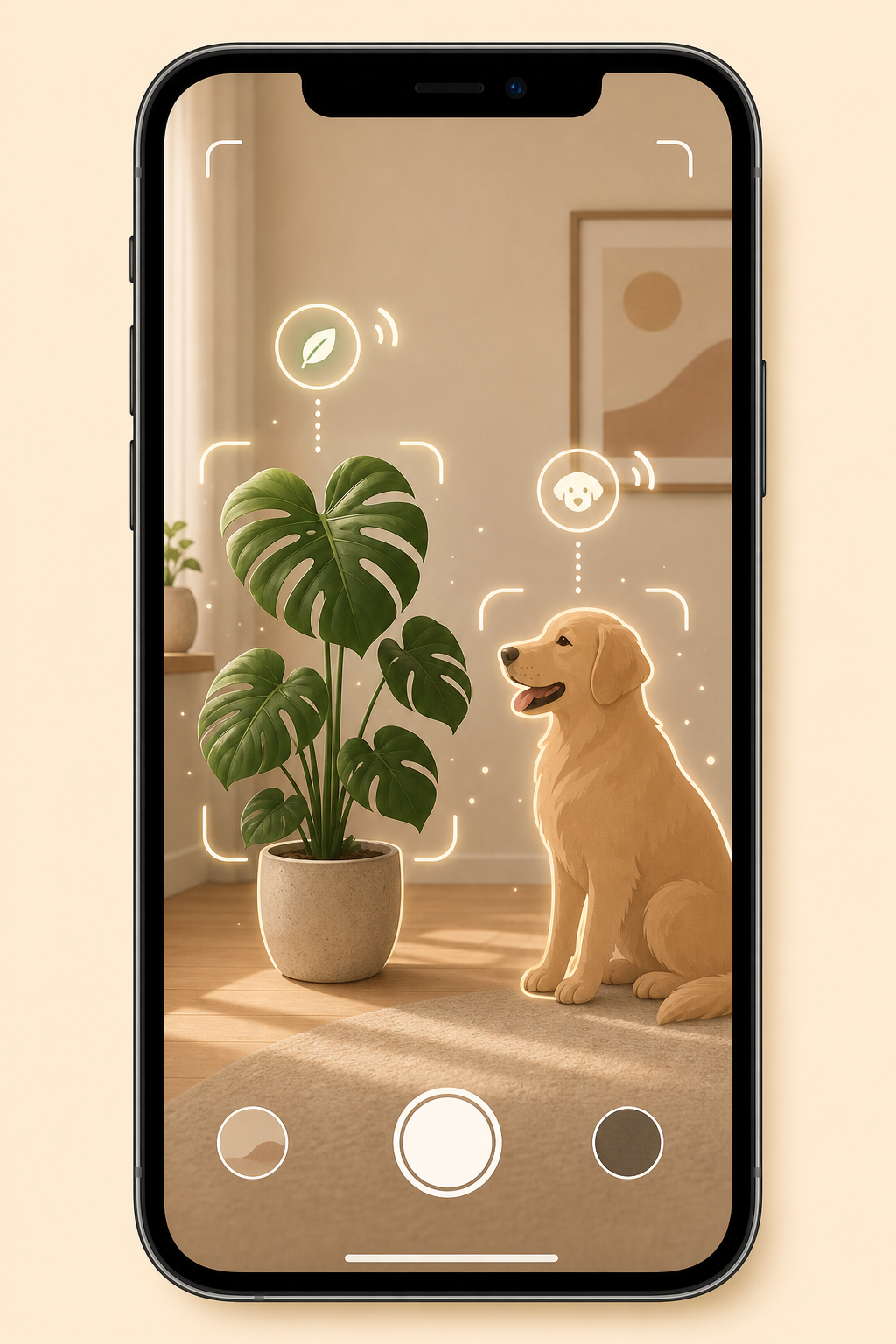 ## How to use it Open a picture in the Photos app in full screen. If your iPhone recognizes something, the Info button shows a small sparkle or a subject-specific symbol. Tap it, then tap the Look Up suggestion in the photo information panel. You may see results for a plant, a pet, a landmark, a work of art, a book, or another recognizable subject. For better results, use a clear photo with decent light. For plants, include leaves and flowers if possible. For dogs or cats, use a photo where the animal is not hidden and the head or body shape is easy to see. The feature works best when the main subject is obvious. ## Why it is useful Visual Lookup is perfect for small everyday questions: What houseplant is this? What dog breed might this be? Which monument is in that travel photo? You do not need to upload the image to a search engine or install a separate identifier app. It is already available where your pictures are. It is also useful for older photos. You can scroll through your library and quickly check whether the Info button has a sparkle. That turns forgotten pictures into helpful notes about places, pets, plants, and objects you once meant to look up. ## Good to know Treat the result as a suggestion, not a fact. Do not rely on it for poisonous plants, mushrooms, animal health, allergies, medical questions, or anything with real risk. Use it as a starting point, then verify important details with a trusted source. If you do not see the sparkle, nothing is broken. Visual Lookup is not available for every image, region, language, or subject. Try a sharper photo, crop closer to the main object, or use another angle. A cleaner image often gives the iPhone a better chance to recognize what matters.
Sources
Selected references used to verify or support this tip.
- Apple Support: Use Visual Look Up on iPhone Apple Support · official_docs