
 Checked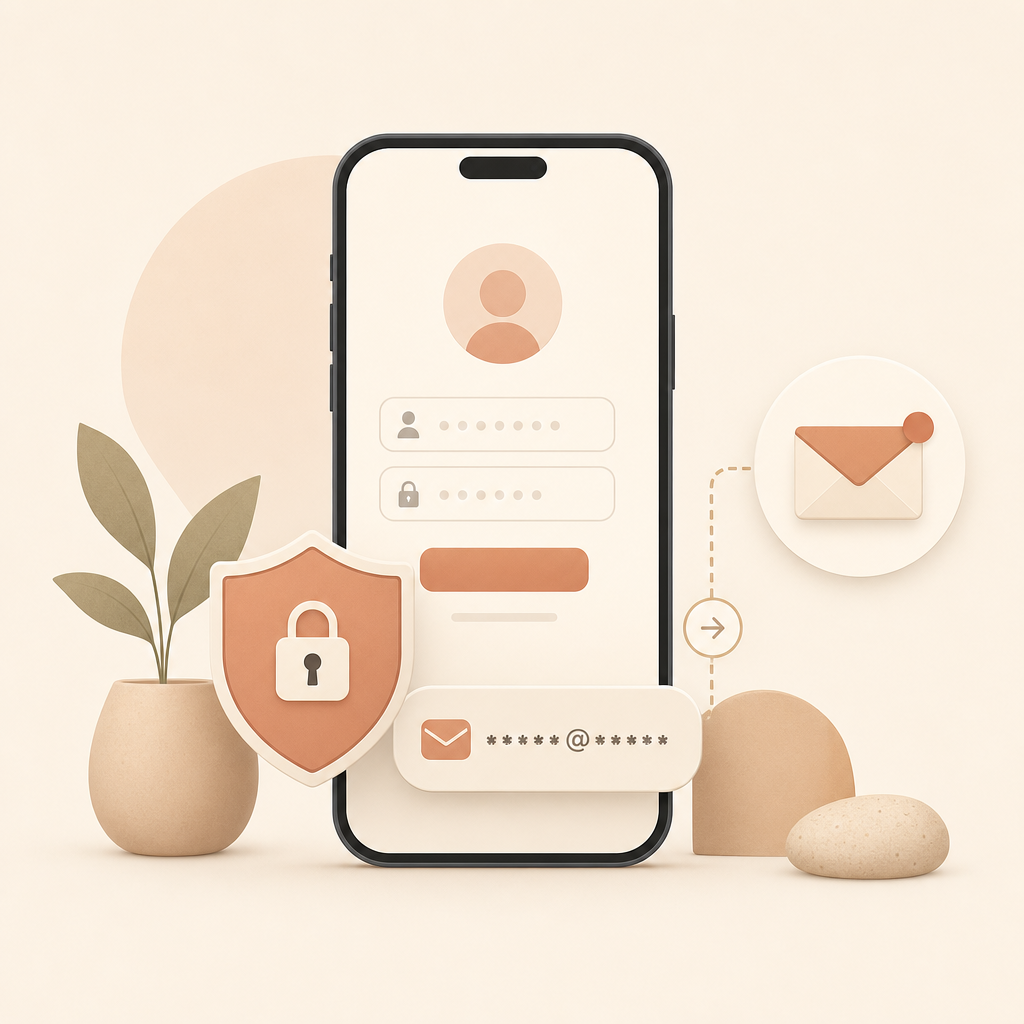
How to use the hidden alias
When an app or website offers Sign in with Apple, do not automatically share your real address. Choose Hide My Email. Apple creates a random alias address that forwards messages to the real email address connected to your Apple ID.
This is especially useful for shops, trial services, newsletters, apps you only want to test, or any service where you are not sure how carefully your email address will be handled.
Where to manage aliases
On iPhone, open Settings -> your name -> Sign-In & Security -> Sign in with Apple. There you can see which apps and services use your Apple ID. Open an entry to check the forwarding address or stop forwarding.
If you have iCloud+, you can also use Hide My Email for manually created aliases. That is useful when you are not using an Apple login but still do not want to hand out your real address.
Why it helps
The service only gets the alias, not your real address. If the service gets annoying, shares data, or suffers a breach, you can stop that one forwarding address without changing your main email.
It is privacy without a messy workaround: no second mailbox, no throwaway account, no extra chaos in your password manager. You just use the option that is already built in.
Be careful when cleaning up
Do not delete or disable an alias too quickly. Legitimate messages may still use it: order confirmations, password resets, invoices, or support replies. If you are unsure, stop forwarding first and check later whether anything important is missing.
Sources
Selected references used to verify or support this tip.
- Apple Support: Hide My Email with Sign in with Apple Apple Support · official_docs