
TL;DR
Press Cmd+Shift+5 to open the Mac's built-in screenshot and recording panel — capture screenshots, screen videos, and timed shots without any additional software.
Checked 1 source Season: All year
 Checked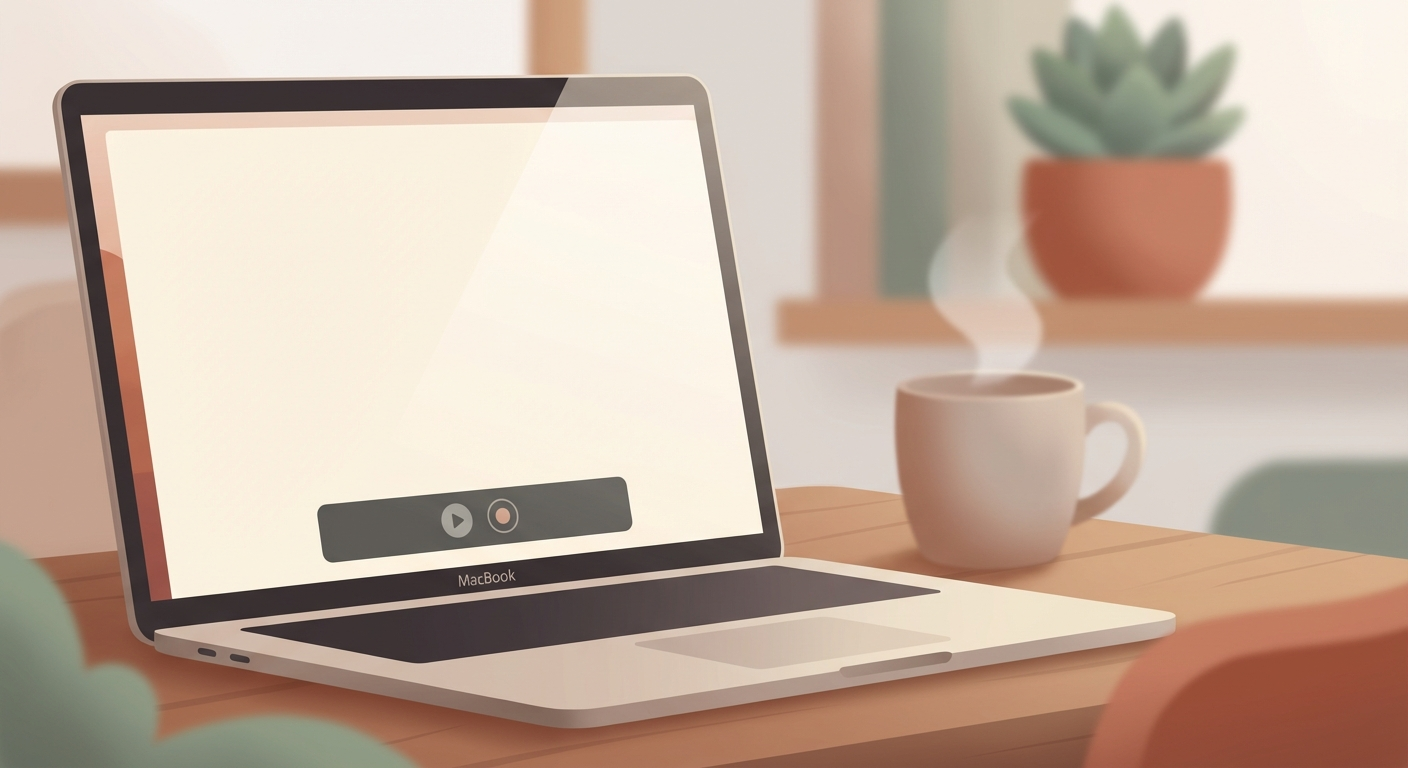
How to do it
- Press Cmd+Shift+5 — a recording panel appears at the bottom of your screen.
- Choose screenshot mode: Entire screen, single window, or selected area.
- Choose video mode: Record the full screen or just a selected portion.
- Adjust options: Click "Options" in the panel to set:
- Save location (Desktop, Documents, Clipboard, Mail, etc.)
- Timer (5 or 10 second delay)
- Show mouse pointer (yes/no)
- Microphone for audio recording (for videos)
- Start recording: Click "Record."
- Stop video: Click the Stop button in the menu bar (top right) — or press Cmd+Ctrl+Esc.
Why this helps
macOS has had a full screenshot and recording tool built in since Mojave (2018). You don't need QuickTime or OBS for simple screen recordings. The panel remembers your last settings — next time, one shortcut is all you need.
Bonus tips
- Use the timer: Set it to 5 seconds — gives you time to open a menu or tooltip before the screenshot fires.
- Preview thumbnail: After a screenshot, a small preview appears in the bottom right. Click it to instantly crop, annotate, or share.
- Quick shortcuts: Cmd+Shift+3 = full screen screenshot, Cmd+Shift+4 = select an area — the fast lane without the panel.
- Change save location: By default, recordings land on your Desktop. Change it permanently via "Options."
Sources
Selected references used to verify or support this tip.
- Apple Support: Take a screenshot on iPhone Apple Support · official_docs