
TL;DR
Long-press supported people and hand emoji to pick a skin tone and let iOS remember it for next time.
Season: All year
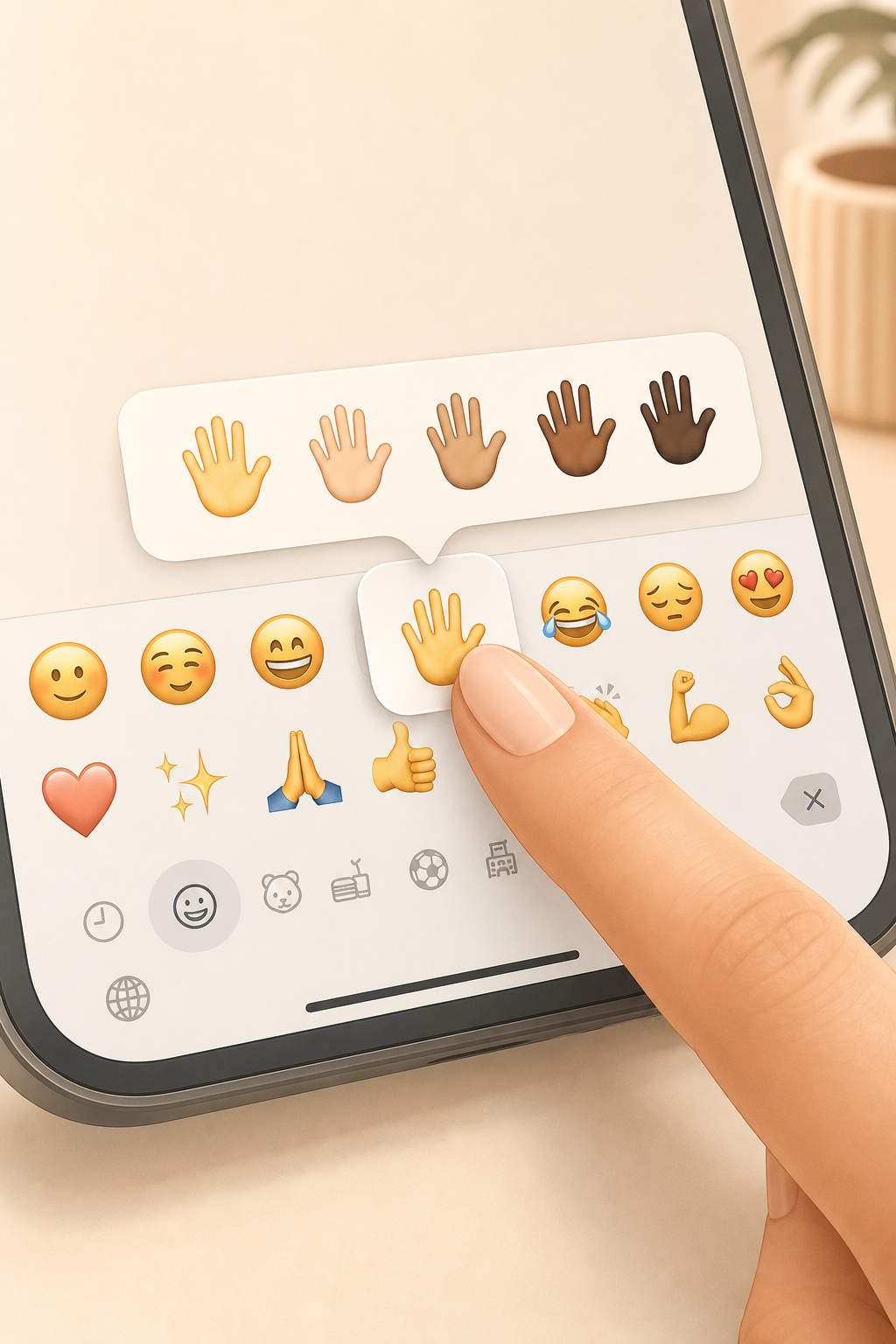 ## How to change the skin tone 1. Open any app where you can type, such as Messages, WhatsApp, Mail, or Notes. 2. Switch to the emoji keyboard. 3. Find a people emoji, hand emoji, gesture, or supported character. 4. Press and hold the emoji instead of tapping it once. 5. Choose the skin tone you want from the small pop-up row. 6. Insert or send the emoji as usual. The useful move is the long press. You do not need a hidden settings page or a separate emoji list as long as the emoji keyboard is already enabled. ## Why this is useful Many people only use the yellow default emoji because the alternatives are not visible at first glance. Once you know the long-press gesture, you can quickly choose a more fitting version for hands, thumbs up, waving, folded hands, facepalm, and many people emoji. iOS often remembers the last skin tone you selected for each supported emoji. If you choose a specific thumbs-up tone once, that version may appear directly the next time you use that same emoji. That makes repeated use faster and more consistent. ## Good to know Not every emoji supports skin tones. Animals, objects, most simple smileys, and many symbols stay unchanged. The feature mainly applies to people, body parts, hands, and certain gestures. If you cannot see the emoji keyboard at all, open Settings > General > Keyboard > Keyboards and add Emoji. After that, you can reach it again through the globe or smiley key. ## Common mistakes Do not tap too quickly. A normal tap inserts the emoji immediately; the longer press opens the skin tone choices. If no pop-up appears, that specific emoji probably does not support skin tone variants. Try a hand, thumbs-up, or waving person to confirm that the feature works.