
TL;DR
Time Machine backs up your Mac almost automatically. With an external SSD, you not only get a backup, you can also restore deleted files and older versions in minutes.
Checked 1 source Season: All year
 Checked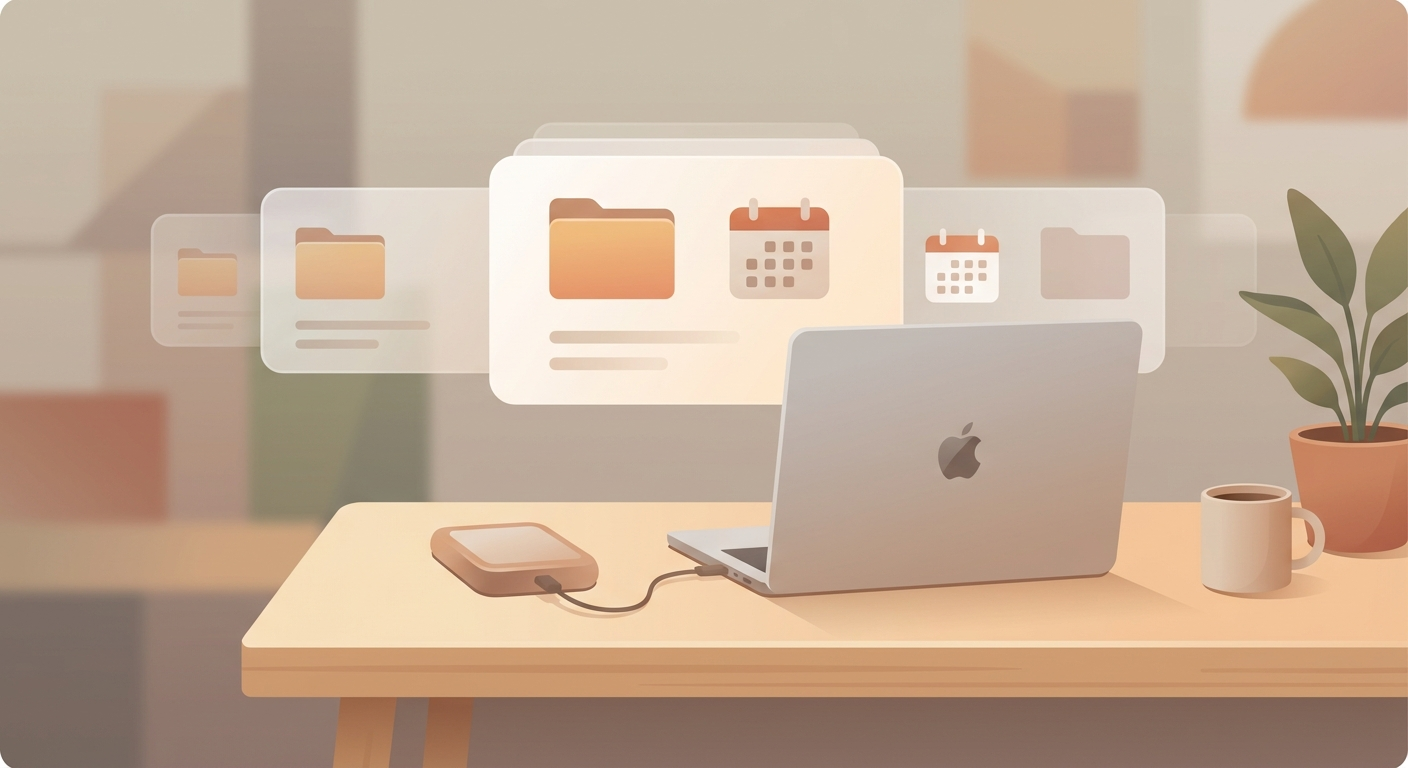
How it works
- Connect an external SSD or hard drive to your Mac. Ideally, it should have at least twice as much space as your currently used storage.
- Open System Settings, General, Time Machine, then select the drive as your backup destination. Turn on encryption if you want extra protection.
- Let the first backup finish completely. It usually takes much longer than later backups.
- After that, Time Machine runs in the background automatically. You only need to keep the drive connected regularly, or leave it attached all the time.
- If you lose a file, open the related folder and launch Time Machine. You can jump back through older versions and restore exactly what you need.
Why this helps
Time Machine is more than an emergency backup. It protects you not only when your Mac fails, but also when everyday mistakes happen, like overwriting a file, deleting a folder, or realizing last week's version was better. The big advantage is that restoring works right inside Finder, so it is practical even if you are not technical.
Sources
Selected references used to verify or support this tip.
- Apple Support: Back up your Mac with Time Machine Apple Support · official_docs